
Finding the best monitors shouldn’t feel like a confusing chore. Are you tired of squinting at a blurry screen that causes painful eye strain? You deserve a stunning display with a smooth refresh rate and incredible resolution. We’ve tested the top models to help you build the ultimate setup for work or gaming. This guide makes it simple to upgrade your desk and enjoy breathtaking visuals every single day. Here are our favorite picks.
Contents
- Top 5 Monitors:
- 1. Dell S2722QC – Best Monitor Overall
- 2. ASUS ProArt PA278CV – Best Creator Monitor
- 3. BenQ MOBIUZ EX2710Q – Best Gaming Monitor with Great Built-in Audio
- 4. Samsung Odyssey G5 – Best Curved Gaming Monitor
- 5. Acer SB220Q bi – Best Budget Monitor
- Things to Consider Before Buying a Monitor:
- Types of Monitors
- LCD vs. LED
- Ultrawide and Multi-Monitor Setups
- Resolution
- Refresh Rate
- Advantages
- Disadvantages
- Intended Use
- Common Queries
- Final Words
Top 5 Monitors:
1. Dell S2722QC – Best Monitor Overall

The Dell S2722QC is an excellent “do-it-all” choice if you’re looking for a monitor that satisfies your needs for clear 4K clarity, everyday comfort, and neat desk connectivity. Especially when used in conjunction with a second monitor, the 27-inch 4K UHD screen and its three-sided ultrathin bezel create an impression of spaciousness and contemporary design. It manages light gaming and fluid video playback with ease, thanks to its quick 4.0ms response time.
This stand is designed to provide maximum comfort throughout extended workdays. Avoid awkward squinting or hunching over in meetings, editing sessions, or movie evenings with the height-adjustable and angle-fine-tuning settings. The ability to adjust the height to suit your chair, workstation, and viewing distance greatly facilitates ergonomic setup.
When it comes to connectivity, this monitor makes daily routine so much easier. Docking is as easy as plug-and-go thanks to the USB-C port, which allows you to charge and attach a compatible laptop with a single cable while simultaneously delivering data, video, and audio. The built-in dual 3W speakers provide enough audio for simple tasks like as watching videos, taking calls, and listening to background music—all without the need for external speakers on your desk.If you’re looking for a 4K monitor that’s both comfy and sharp, will keep your setup neat, and will make your workflow easy, then it’s a great pick.
2. ASUS ProArt PA278CV – Best Creator Monitor

The ASUS ProArt PA278CV is designed for creators who desire a monitor that simplifies their desk configuration and provides comfortable viewing for extended editing sessions. Keep your eyes on your timeline, layers, and color work without having to battle against distracting light from windows or overhead lamps thanks to its 27-inch, non-glare display.
One of its greatest advantages is its connectivity. A single cable can charge and connect a compatible laptop with DisplayPort over USB-C and up to 65W Power Delivery, streamlining docking and getting you up and running quickly. A USB 3.1 hub allows you to connect necessary devices such as external storage, card readers, and peripherals directly to the monitor, in addition to DisplayPort and HDMI for desktops.
With Adaptive-Sync and a 75Hz refresh rate, quick action and animations appear more fluid and less choppy, which is great for content with a lot of movement. If you’re editing videos, viewing motion graphics, or just want the scrubbing and scrolling experience to be smoother, that is a great feature to have.
You may connect up to four monitors for a multi-display arrangement via daisy-chaining via DisplayPort when you’re ready to expand your workspace. This is perfect for having your reference material, asset library, editing window, and other windows all visible at once. In sum, it’s a reasonable pick for anyone seeking creator-friendly networking, a streamlined one-cable laptop arrangement, and the ability to grow into a robust workstation.
3. BenQ MOBIUZ EX2710Q – Best Gaming Monitor with Great Built-in Audio

There isn’t a better option than the BenQ MOBIUZ EX2710Q if you’re looking for a gaming monitor that doesn’t sacrifice speed, looks great, and has decent audio quality even without external speakers. The anti-glare screen helps reduce reflections during extended sessions, and the 27-inch QHD IPS panel gives you a clear, vivid picture that’s great for both competitive games and story-driven ones.
Its true value lies in its performance. If you’re tracking targets, flicking corners, or rapidly moving around the map, you’ll enjoy smoother motion and cleaner transitions thanks to the 165Hz refresh rate and 1ms MPRT reaction rate. In addition to reducing tearing and stuttering, FreeSync Premium helps keep gaming fluid even when frame rates change.
One notable perk is the integrated sound system. You receive a 2.1 channel system with a 5W subwoofer, which gives the sound of explosions, engines, and deep soundtracks the presence they deserve, rather than just thin, basic monitor speakers. Particularly useful if you play in a cramped place or would prefer not to have a separate speaker system, as it allows you to clear more desk space and maintain a neater overall setup.
You may use BenQ’s Light Tuner to tweak the contrast of both bright and dark situations, allowing you to play intelligently in challenging lighting conditions. This way, you won’t lose enemies in shadows or have trouble spotting details. If you’re looking for a balanced option that offers 1440p gaming on top of practical built-in audio, it’s a solid pick.
4. Samsung Odyssey G5 – Best Curved Gaming Monitor

Designed to immerse you in the action the instant you sit down, the Samsung Odyssey G5 is a curved gaming monitor that you should consider. Particularly beneficial in fast-paced shooters, open-world games, and detailed role-playing games is the 32-inch QHD resolution, which offers about 1.7 times the pixel density of Full HD. As a result, you enjoy smoother textures, less jagged edges, and easier legibility of in-game menus.
Got you covered in terms of speed. You can smoothly pan around the map or follow fast targets thanks to the 165Hz refresh rate, and blur is reduced during fast movement thanks to the 1ms MPRT response time. No matter if you’re grinding ranked matches or simply enjoying a single-player adventure, that mix makes gameplay feel more responsive.
The 1000R curve is the unique selling point of the experience. Aside from making racing games, simulators, and cinematic titles feel more immersive and less “flat,” it also helps you stay focused for longer sessions by drawing more of the screen into your peripheral vision.
To keep everything running cleanly, AMD Radeon FreeSync syncs the monitor’s refresh rate with your graphics card to reduce tearing and stuttering. That means you’ll have a more fluid experience playing games and viewing movies, with less visual distractions caused by fluctuations in frame rate. If you’re looking for a big curved screen with sharp QHD detail and fluid performance that pulls you in, the Odyssey G5 is a solid pick.
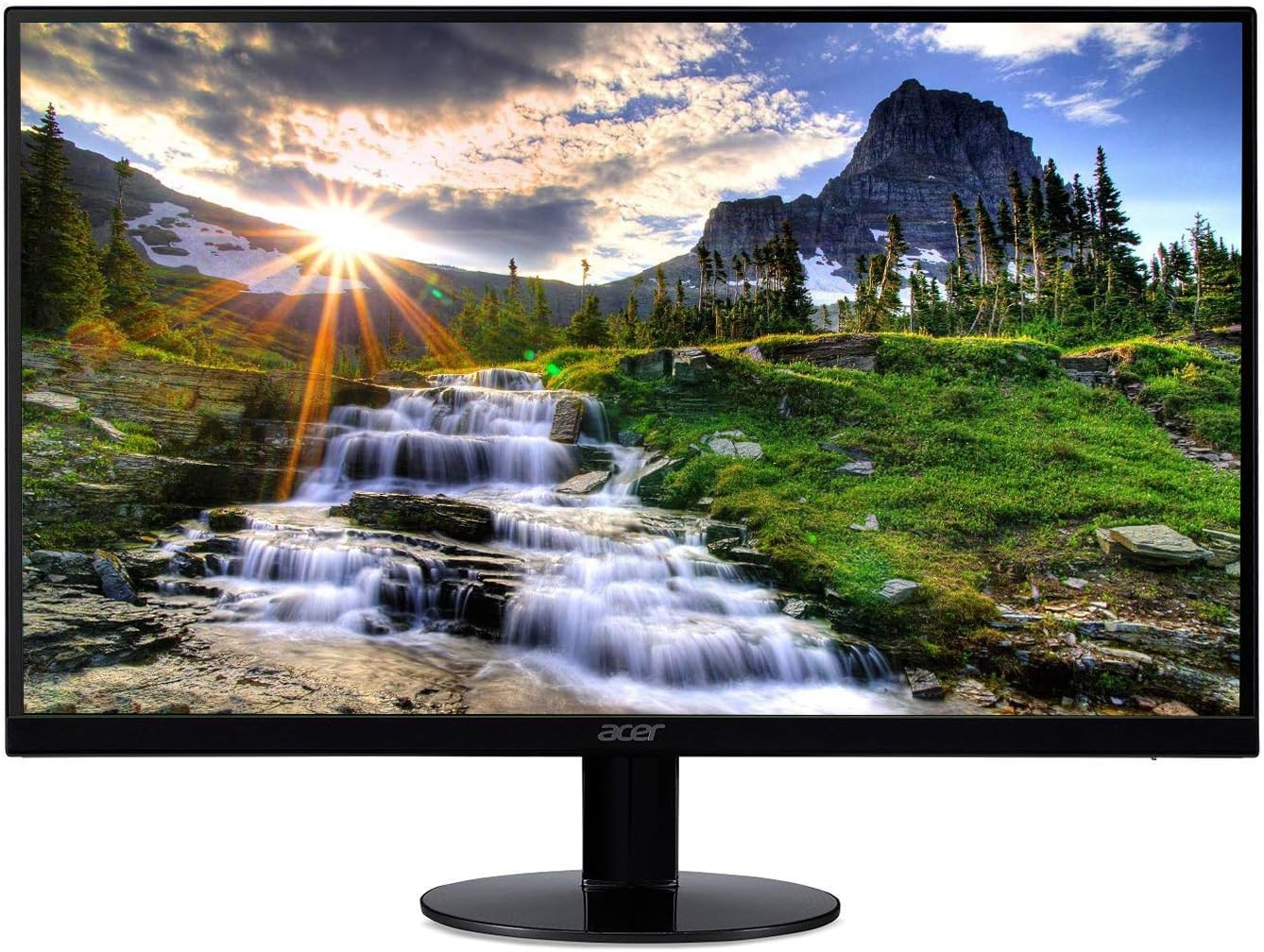
5. Acer SB220Q bi – Best Budget Monitor
.
For everyday work and enjoyment, the Acer SB220Q bi is a reliable and affordable monitor that looks great. Its 21.5-inch Full HD IPS display makes text and images pop, and the broad 178° viewing angles keep colors and contrast true even if you’re not seated directly in the middle of the screen, which is great for screen sharing and watching films while leaning back.
Using the HDMI connector, it provides a refresh rate of up to 75 Hz and supports AMD Radeon FreeSync, making motion look smoother. Scrolling, casual gaming, and video playback become more smooth with that combo, which helps decrease screen tearing. Things remain responsive for general use with a 4ms response time.
The minimalist design is perfect for a compact workstation. You receive more screen real estate without the heft of thick bezels thanks to its Zero-Frame, ultra-thin design, and it fits snugly in places like home offices, dorm rooms, and other small locations. The monitor’s 16.7 million color options and 250 nits of brightness make it ideal for use in most indoor settings, resulting in photos that look very lifelike.
You may adjust the stand’s tilt from approximately -5° to 15° for a more comfortable viewing position and to reduce glare. All things considered, it’s a reasonable pick for those seeking affordable, space-saving design, IPS image quality, and fluid performance.
Things to Consider Before Buying a Monitor:
You should define your primary use-gaming, content creation, or productivity-and match display size, resolution, panel type, refresh rate, color accuracy, connectivity, and ergonomics to those needs; also consider budget, adaptive sync support, and warranty to ensure long-term value.
Types of Monitors
You’ll pick among panel types, resolutions, refresh rates and form factors based on use: for gaming you’ll chase 144Hz-240Hz and 1ms response on TN/IPS, while creative work favors 27″-32″ IPS panels with 99% sRGB or 95% DCI-P3 and 3840×2160; VA panels give high contrast for movies, and OLED/Mini‑LED deliver superior blacks and HDR. Expect tradeoffs in price, power draw, and lifespan when prioritizing one spec over another.
LCD vs. LED
You should know LED is a backlight type for LCD panels rather than a separate display technology: edge‑lit LED keeps bezels thin but can show uneven backlight, full‑array local dimming (FALD) improves contrast and HDR performance with hundreds of zones, and typical LED‑backlit IPS monitors reach 250-600 nits while Mini‑LED models exceed 1000 nits for better HDR highlights.
Ultrawide and Multi-Monitor Setups
You’ll get 21:9 (3440×1440) or 32:9 (5120×1440) ultrawides that replace two 27″ monitors without a seam; for example, an LG 34″ 3440×1440 ultrawide gives roughly the same horizontal workspace as two 24″ 1080p screens, boosting timeline and spreadsheet room by ~30-50% while requiring GPU bandwidth and desk depth considerations.
Delving deeper, curved ultrawides (e.g., 1000R-1800R) reduce eye rotation and improve immersion for large diagonals; gaming models like the LG 34GN850 offer 144Hz and 1 ms GtG with 98% DCI‑P3, whereas the Samsung Odyssey G9 provides 49″ 5120×1440 at 240Hz for simultaneous gaming and streaming panes. In multi‑monitor arrays you’ll want thin bezels (1-5 mm), matched color calibration across panels, and monitor arms to align heights; also confirm your GPU supports the combined resolution and refresh via DisplayPort MST or multiple outputs to avoid performance bottlenecks.
After weighing panel type, resolution, refresh rate, desk space and GPU capability, prioritize hands‑on testing or measured reviews to confirm the real‑world contrast, color accuracy, and uniformity you’ll live with.
Resolution
You should match resolution to screen size and GPU: 1920×1080 works well on 21-24″ displays, 2560×1440 is ideal for 27″ with sharp text, and 3840×2160 (4K) gives true detail on 27-32″ but demands substantially more GPU power and VRAM-expect larger VRAM use in games at native 4K. Higher pixel density benefits photo and video work, while UI scaling can affect workflow if you choose very high DPI on small screens.
Refresh Rate
You want more than 60Hz for smoother motion: 75-120Hz improves general responsiveness, 144Hz is the sweet spot for most competitive gamers, and 240Hz+ targets esports pros chasing every millisecond. Match refresh rate to your GPU output-running 144Hz at 1440p requires a stronger card than 60Hz-and enable adaptive sync (G‑Sync/FreeSync) to reduce tearing and stutter for variable frame rates.
Higher refresh rates mean the display updates more times per second-144Hz updates 144 times-so you need comparable FPS from your GPU to benefit; otherwise, adaptive sync helps. Also consider response time (1-4ms gray‑to‑gray) to limit ghosting, and note diminishing returns above 240Hz for most users. For consoles, PS5 and Xbox Series X support up to 120Hz on select titles, and achieving high Hz at high resolution often requires DisplayPort 1.4/2.0 or HDMI 2.1 plus a capable GPU.
Advantages
You get clear tradeoffs: IPS panels give you accurate, wide‑gamut color useful for photo and video work (many hit ~99% sRGB), TN panels deliver 1 ms latency and up to 360 Hz for competitive play, VA panels provide ~3000:1 contrast for cinematic depth, and OLED yields true blacks and sub‑ms response for premium image fidelity-pick the type that matches whether you prioritize color accuracy, contrast, or speed.
Disadvantages
You’ll face compromises: IPS can cost more and show glow; VA often ghosts at high motion rates (4-8 ms artifacts); TN sacrifices color for speed; OLED can suffer burn‑in after thousands of hours with static HUDs and is pricier-so your intended use (gaming, editing, media) should drive the choice.
For more detail, if you play fast competitive titles you’ll likely accept TN or fast IPS despite weaker color, whereas content creators will favor calibrated IPS panels with 10‑bit support and factory reports of 95% DCI‑P3. If you watch a lot of HDR video, VA or OLED gives better perceived contrast-just be aware that OLED manufacturers recommend pixel‑shift and varied content to mitigate burn‑in risk, and VA panels may need overdrive tuning to reduce phantoming in esports scenarios.
Intended Use
You’ll choose panel and specs based on primary use: esports players want 240Hz+ 1080p TN/fast IPS with 1 ms response, while content creators need 27-32″ 4K or 1440p IPS with 99%+ DCI-P3 and hardware calibration. If you stream and multitask, ultrawide 3440×1440 gives extra real estate. The console gamers need HDMI 2.1 for 4K120 or VRR support.
For example, if you play CS:GO or Valorant, prioritize 240Hz or 360Hz panels paired with GPUs that sustain frame rates; pro setups often use 24-25″ 1080p to reduce pixel travel. By contrast, photographers using Adobe Photoshop prefer 27″ 1440p or 32″ 4K with X-Rite calibration to achieve Delta E <2. The workstation buyers should verify colorimeter compatibility and GPU outputs.
Common Queries
When choosing resolution and size, you should match viewing distance: 24″ works well with 1920×1080, 27″ is ideal at 2560×1440, and 32″+ benefits from 3840×2160 for desktop use. For gaming prioritize 144Hz+ and 1-5 ms response, while photo/video work favors IPS with ≥99% sRGB or 100% Adobe RGB. Also confirm DisplayPort 1.4/HDMI 2.1 availability and the warranty length.
Final Words
To wrap up, before buying a monitor assess your primary use, decide what resolution and size suit you, choose panel type, refresh rate and response time, check connectivity and ergonomics, and weigh budget trade-offs; test color accuracy if you work with visuals, prioritize eye comfort for long sessions, and select a warranty to protect your investment.
Leave a Reply