
Finding the best Windows tablet should not feel like a chore. Are you exhausted by heavy laptops that drain your energy during long commutes? You deserve a portable powerhouse that handles complex tasks with breathtaking ease. Whether you require a versatile 2-in-1 for professional projects or a creative canvas, the right device will revolutionize your workflow. We have analyzed the top-rated models to simplify your decision. Let’s explore the winners.
Contents
- Top 7 Windows Tablet:
- 7: Fusion5 10.1″ Windows 11 Tablet PC (2026)
- 6: Fusion5 10.1″ Rugged Pro Windows 11 Tablet
- 5: Fusion5 12″ 2K Windows 11 Tablet (2026)
- 4: ASUS ProArt PZ13 (AMOLED 2.8K, included keyboard)
- 3: Microsoft Surface Pro 11th Edition (Snapdragon X Plus, bare)
- 2: Microsoft Surface Pro 11 Bundle (X Plus + Keyboard + Slim Pen)
- 1: ASUS ROG Flow Z13 (2025)
- Things to Consider Before Buying a Windows Tablet:
- Professional 2-in-1 Detachables
- Ultra-Portable Windows Slates
- Processor Performance and RAM Requirements
- Display Resolution and Color Accuracy
- Defining Your Primary Use Case and Workflow
- Matching Specifications to Your Budget
- Verifying Accessory and Stylus Compatibility
- Checking Thermal Management and Battery Benchmarks
- Summing up
Top 7 Windows Tablet:
7: Fusion5 10.1″ Windows 11 Tablet PC (2026)

If you’re looking for a cheap Windows tablet, go no further than the Fusion5 10.1″.In comparison to a laptop, most tablets of this size run a mobile operating system, which means they can’t cleanly load Excel or run genuine Photoshop. Closing that gap is the Fusion5.To start, a 13th generation Intel N100 processor with 3.4 GHz turbo. Full desktop functionality, including stutter-free Office, multi-tab browsing, and light picture editing.
What follows is a 512GB MicroSD card slot, 256GB SSD, and 12GB of RAM. Space for a few computer games and school documents.The 500-nit Full HD IPS touchscreen is the last component. Clear for crystal-clear video chats, and bright for sunny patios.Drawbacks: The keyboard dock is sold separately, the cameras have fixed focus, and the 10.1-inch screen is too tiny for real multitasking.Students and anyone looking to purchase a Windows tablet for the first time will benefit the most from this. Not recommended for people who are constantly switching between tasks.
6: Fusion5 10.1″ Rugged Pro Windows 11 Tablet
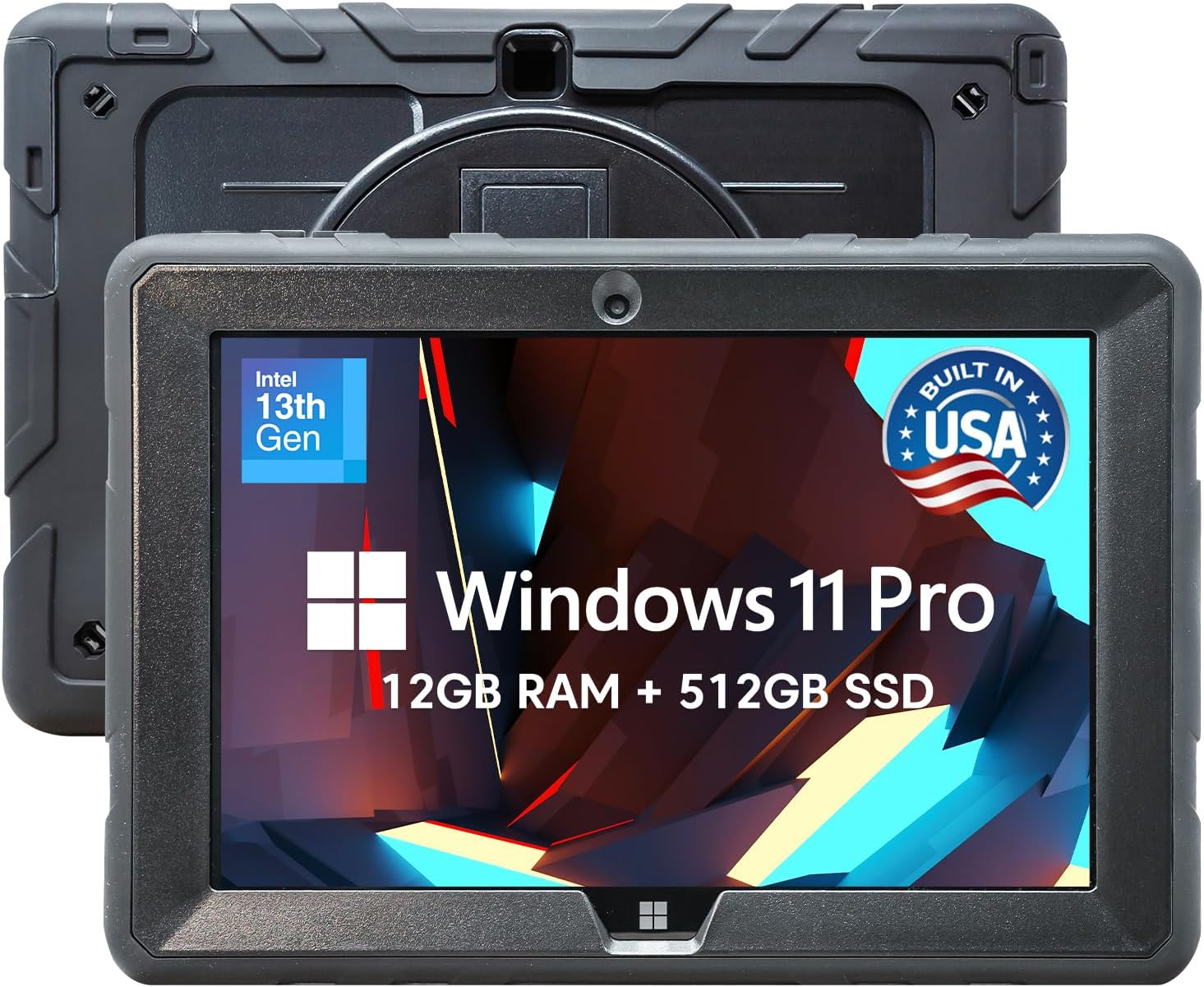
The most reliable Windows tablet for outdoor and construction work is the Fusion5 Rugged 10.1″ Pro.One drop on concrete is all it takes to kill regular pills. That is precisely why the Rugged Pro was designed for it.First, a strengthened body that is shockproof and dustproof, complete with a strap that allows you to wear it without using your hands. Withstands the types of drops and dust that destroy consumer tablets.After that, there are USB 3.0, Micro HDMI, and USB-C ports that automatically shut when not in use. Each connector is designed to keep dust and moisture out.
A 2.5D glass touchscreen with 500 nits is now available. Even when protected from scratches by a work glove, it is legible on a rooftop at noon.Cons: it’s heavier than a thin consumer tablet, has no LTE, and the screen size remains 10.1 inches.Ideal for: landscapers, outdoor educators, and field technicians. Do not purchase if you are a home user seeking a very thin tablet.
5: Fusion5 12″ 2K Windows 11 Tablet (2026)
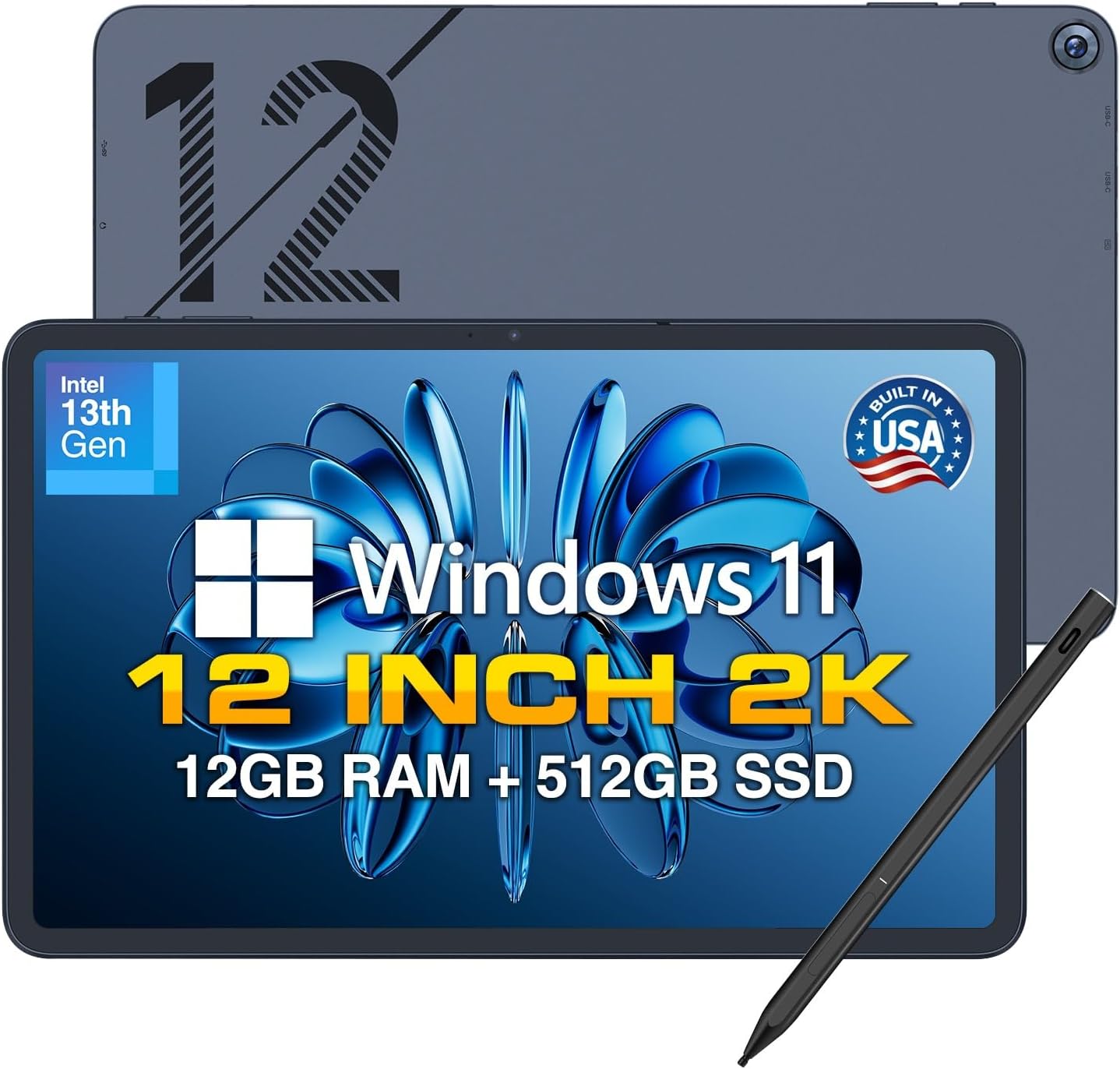
The most cost-effective 12-inch Windows tablet for productivity—the Fusion5 12″ 2K.Working on a 10-inch tablet is a pain. Palettes won’t fit, and tabs overlap. The 12″ 2K takes care of it.An initial item: a 12-inch 2K touchscreen with a resolution of 2000 x 1200 and a 16:10 aspect ratio. A true multitasker—Word open alongside a web browser, a PDF next to your notes.A 512GB solid-state drive and 12GB of DDR5 RAM are then required. DDR5 ensures fluid multitasking, unlike earlier 10-inch tablets.
Lastly: an active cooling fan that is built-in. Consistent performance even while under heavy load; rendering or calling lengthy processes will not experience heat throttling.Downside: the supplied stylus serves its purpose, although it isn’t of pen-pro quality. Lower power consumption compared to the tough Fusion5. There is no USB-A connector.If you’re a student, freelancer, or light maker in need of space to work, here is the place for you. People who require premium pen pressure should not use this.
4: ASUS ProArt PZ13 (AMOLED 2.8K, included keyboard)

For Windows users desiring an OLED screen free of Microsoft branding, the ASUS ProArt PZ13 is the ideal tablet.Screens on most Windows tablets are LCDs, which are great for web surfing but not great for color editing. The PZ13 breaks into the mid-range with its premium OLED display.This one starts with a 13.3-inch AMOLED 2.8K touchscreen with a resolution of 2880 by 1800. The color volume and deep blacks required by producers are hallmarks of flagship OLED quality.
Then there’s the keyboard cover that comes with the set. You will receive the package with the magnetic-attach keyboard.Lastly, a 1.87-pound body housing a 70 WHr battery. It has an SD card slot for camera offloads, Wi-Fi 7, and complete Windows 11.Unfortunately, you can’t buy the pen with it. From time to time, Windows on Arm encounters x86 friction. The number of available ports is low, and a headphone jack is nonexistent.Ideal for: designers, learners, and anybody seeking a thin Windows tablet with an OLED display. Not recommended for: demanding older x86 workflows or gamers.
3: Microsoft Surface Pro 11th Edition (Snapdragon X Plus, bare)

This is the most streamlined version of the Surface lineup so far: the Microsoft Surface Pro 11th Edition.Just the tablet, no keyboard or pen—that’s the Surface Pro stripped down to its essentials. At times, that is sufficient.The first is a 10-core Snapdragon X Plus CPU that has its own dedicated NPU. Experience the power of a laptop in the form factor of a tablet, but without the annoying fan noise.Afterwards, a 65W rapid charger via USB-C or Surface Connect can extend the battery life to 14 hours. An entire academic day on a single battery.
Lastly, a Copilot+ PC NPU stack—local artificial intelligence for picture generation, live captioning, and smart-Windows technologies that prior Surfaces aren’t compatible with—is here.Downside: You have to buy the Flex Keyboard separately. On rare occasions, x86 apps on Windows on Arm can act strangely. Though if you preferred something larger, it is only 13 inches.Perfect for those who are often on the go and have a keyboard on hand, such as students, professionals, and road warriors. Intended use: not for x86-plugin-tied workflows or hardcore gamers.
2: Microsoft Surface Pro 11 Bundle (X Plus + Keyboard + Slim Pen)

If you’re sick of buying Surface Pro accessories, get the 11 Bundle from Microsoft. It’s the greatest Surface Pro option.If you want to purchase the Surface Pro without any accessories, you will need to purchase a keyboard and a pen. Well, that is resolved with this bundle.To start, you get a Surface Slim Pen and a Microsoft Pro Keyboard. As soon as it arrives, you have a fully functional laptop with a charging pen that fits neatly inside the keyboard.Right after that, a 1 terabyte solid-state drive (SSD), which is four times as much storage as the entry-level Surface and plenty of space for major creative workloads or local artificial intelligence models.
And lastly, the identical 13-inch PixelSense Flow screen with a dynamic refresh rate of 120Hz and a resolution of 2880 by 1920. More streamlined inking and scrolling than previous Surface iterations.Downside: the processor is still the Snapdragon X Plus and not the Elite.Difficulty in using older x86 applications on Windows on Arm. This bundle does not have an OLED option.Who this is ideal for: artists, students who like to draw, and anyone sick of accessory upsells. Those looking for an OLED screen or really powerful CPU should look elsewhere.
1: ASUS ROG Flow Z13 (2025)

The sole Windows tablet designed from the ground up for AAA gaming—the ASUS ROG Flow Z13.When the second AAA game loads, every single tablet here crashes. No breaks for the Z13.The first is a 395-processor AMD Ryzen AI MAX+ PC with RDNA 3.5 graphics. REAL AAA gameplay, not a shaved-down port—discrete-class GPU power on a single chip.The second component is a 1 TB Gen 4 SSD and 32 GB of LPDDR5X 8000 MHz quad-channel memory. The CPU and GPU are fed by a single memory, resulting in smoother frames.
Next up is a 13.4-inch ROG Nebula screen with 2.5K and 180Hz refresh rate. High frame rate gaming with accurate color rendering by creators.The removable RGB keyboard and 170-degree kickstand round out the list of features. Transform your tablet into a portable gaming rig by docking a controller and removing the keyboard.Cons: becomes hotter when you’re using it. The battery life of ARM tablets is shorter. Tablets here are bulkier than others.Particularly well-suited for: heavy users, mobile content providers, and gamers on the go.Avoid if you are a purist about batteries or a consumer who isn’t serious.
Things to Consider Before Buying a Windows Tablet:
There’s a lot to weigh when choosing a Windows tablet. Understanding the specifications, battery life, and intended use will guide you in finding the right device for your needs and budget. This guide highlights key factors to help you make an informed decision.
Professional 2-in-1 Detachables
These devices combine the functionality of a laptop and tablet, featuring removable keyboards. Users benefit from a versatile experience, making them ideal for professionals seeking mobility without sacrificing power.
Ultra-Portable Windows Slates
Ultra-portable slates are lightweight, compact options designed for easy transport. With a focus on basic tasks like browsing and media consumption, they offer convenience for users on the go.
Ultra-portable Windows slates typically include long battery life and touchscreen functionality, enhancing usability. They’re perfect for casual users who prioritize portability for work or leisure activities. Choose one if you need a device that’s easy to carry yet functional enough for everyday tasks.
Processor Performance and RAM Requirements
Evaluate the processor’s capabilities and RAM size to ensure smooth multitasking and app performance. A powerful processor paired with adequate RAM is necessary for running demanding applications efficiently.
Display Resolution and Color Accuracy
Assess the display’s resolution and color accuracy to enhance viewing experiences. High resolution and accurate colors contribute to clarity in graphics and text, improving your overall enjoyment of the device.
Choosing a tablet with superior display resolution ensures crisp visuals, while color accuracy is crucial for tasks like photo editing and graphic design. A higher pixel density makes details sharp, whereas accurate colors ensure that what you see on the screen reflects true-to-life hues. This attention to display quality boosts productivity and enjoyment during media consumption.
Defining Your Primary Use Case and Workflow
Understanding your primary tasks is necessary. Whether you’re focused on productivity, entertainment, or creative work, select a tablet designed to enhance that experience. Tailor your choice to match specific applications and functionalities you will use most frequently.
Matching Specifications to Your Budget
Finding the right balance between performance and cost is key. Set a budget that reflects your financial limits while considering necessary features. Prioritize specifications that align with your intended use and avoid overspending on unnecessary extras.
Creating a budget helps narrow down your options without compromising on important features. Analyze specifications like battery life, processing power, and storage against what you’re willing to spend. Use this data to refine your choices, ensuring the best value for your investment while meeting your unique requirements.
Verifying Accessory and Stylus Compatibility
Examining compatibility with accessories like keyboards and styluses ensures you maximize the tablet’s functionality. Check manufacturer specifications and user reviews to confirm that your preferred tools work seamlessly with the device you’re considering.
Checking Thermal Management and Battery Benchmarks
Evaluating thermal performance and battery longevity is critical for long-term satisfaction. Look for tests that measure heat dissipation under load and average usage times, ensuring the device can handle your tasks without overheating or draining too quickly.
Battery benchmarks should not be overlooked. Poor thermal management can lead to throttling, impacting performance during resource-intensive tasks. High-performing tablets maintain optimal temperatures while delivering impressive battery life, so seek out reviews that provide detailed measurements to make an informed decision.
Summing up
The decision to purchase a Windows tablet involves various considerations such as performance, battery life, display quality, and compatibility with software. Evaluating these factors helps ensure the device meets your needs effectively, offering a balance of functionality and convenience for both work and leisure activities.
Leave a Reply